Docs
Everything you need to go from nothing installed to steering your agents from your phone.
Install
You need two things: the app on the computer your agents run on, and the app on your phone. Both are on the download page, with the steps for each system — that page is the one place those steps live, so it is the one to follow.
The free plan works on your own network without an account. Create one only when you want to reach your computer from anywhere.
Pair your phone
Pairing gives your phone its own key to your computer. It takes a minute, once.
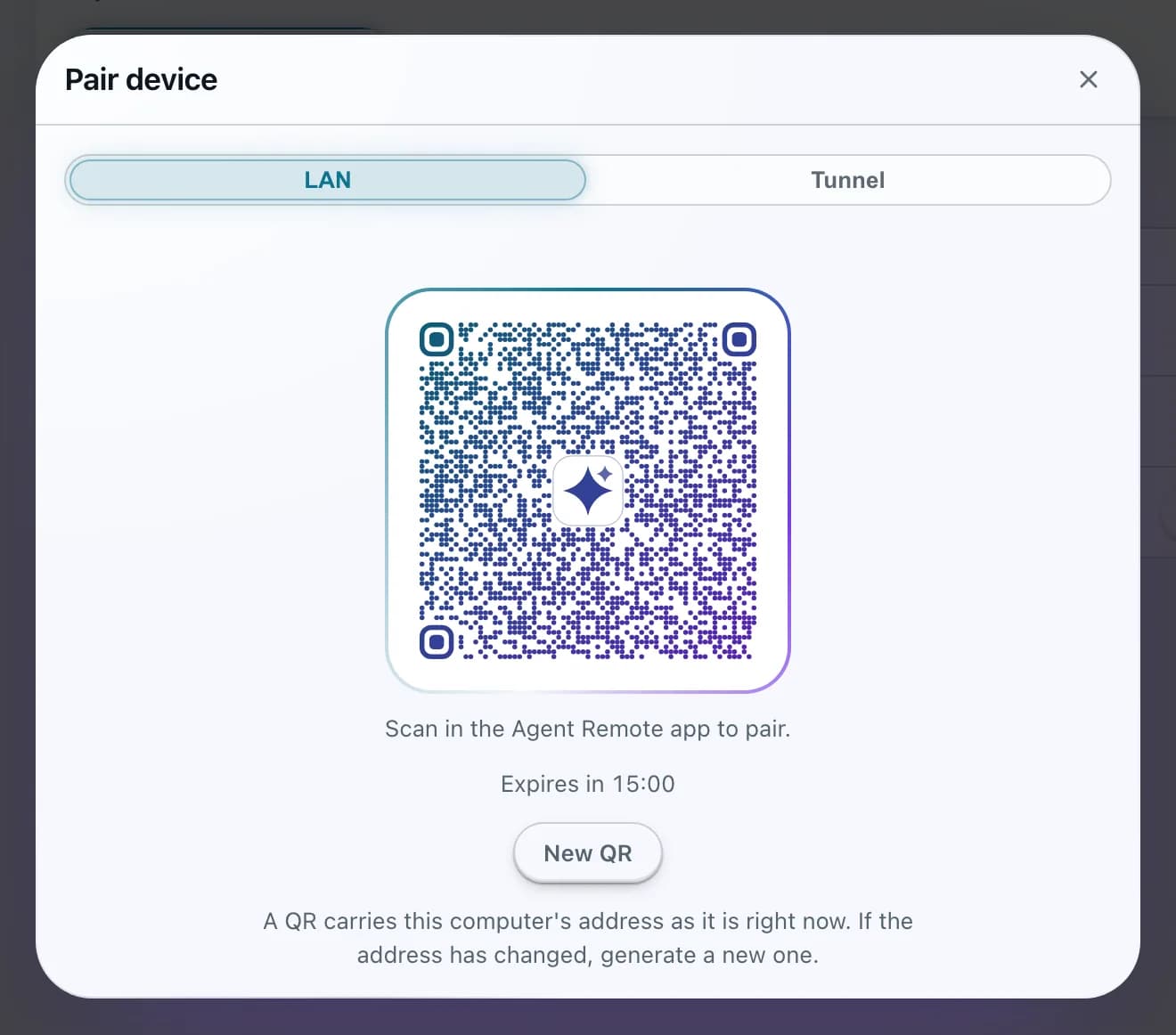
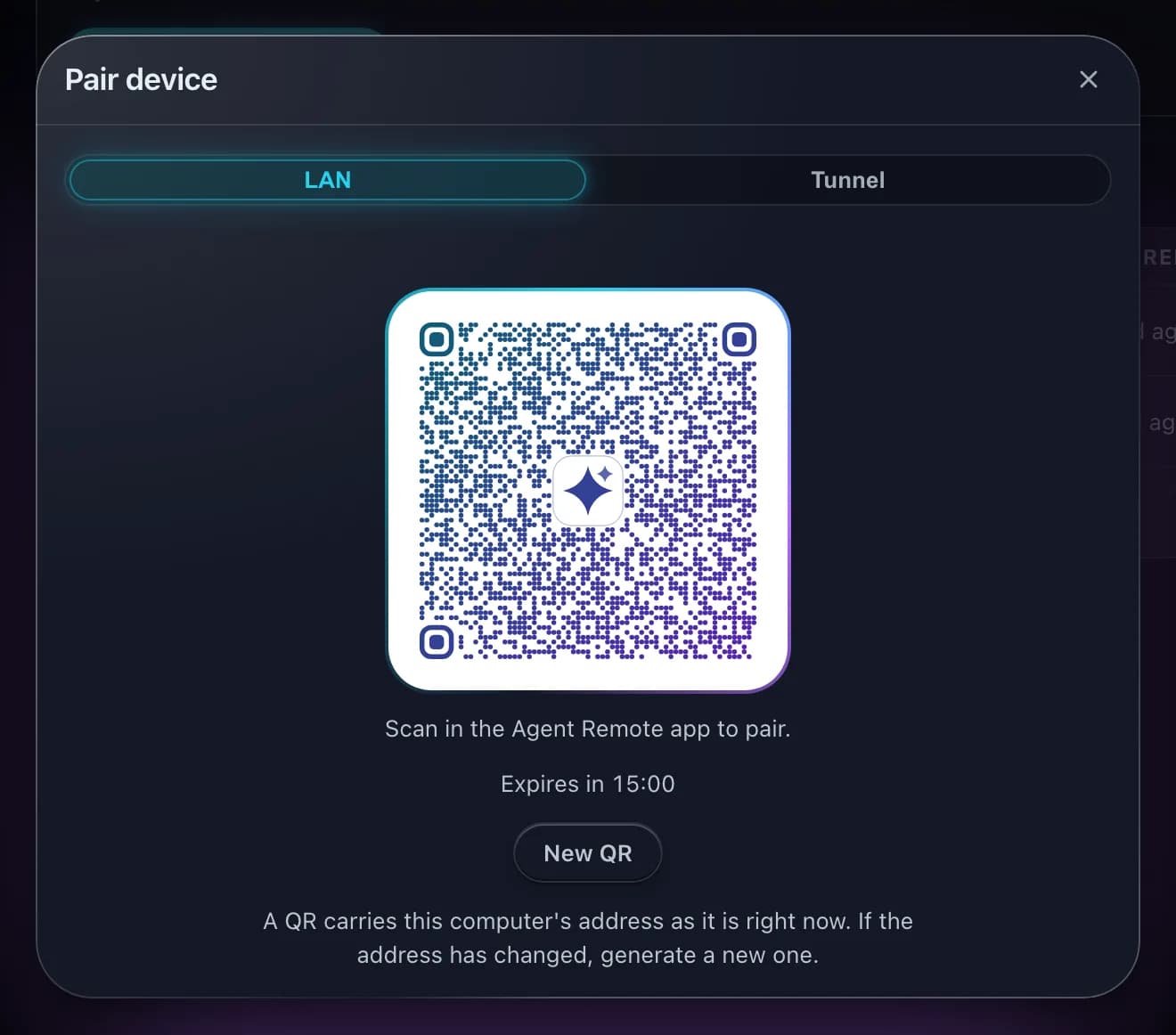
- On your computer, open the app, go to Access and choose Generate pairing QR. You can name the phone first under Device label, and choose Add folder… to pick the folders it may start sessions in (see What a phone can reach).
- On your phone, tap the QR icon at the top — or + beside your computers, then Scan pairing code — and point the camera at the code. Allow the camera the first time.
- Confirm with Pair. The phone shows Paired and the code on the computer closes by itself.
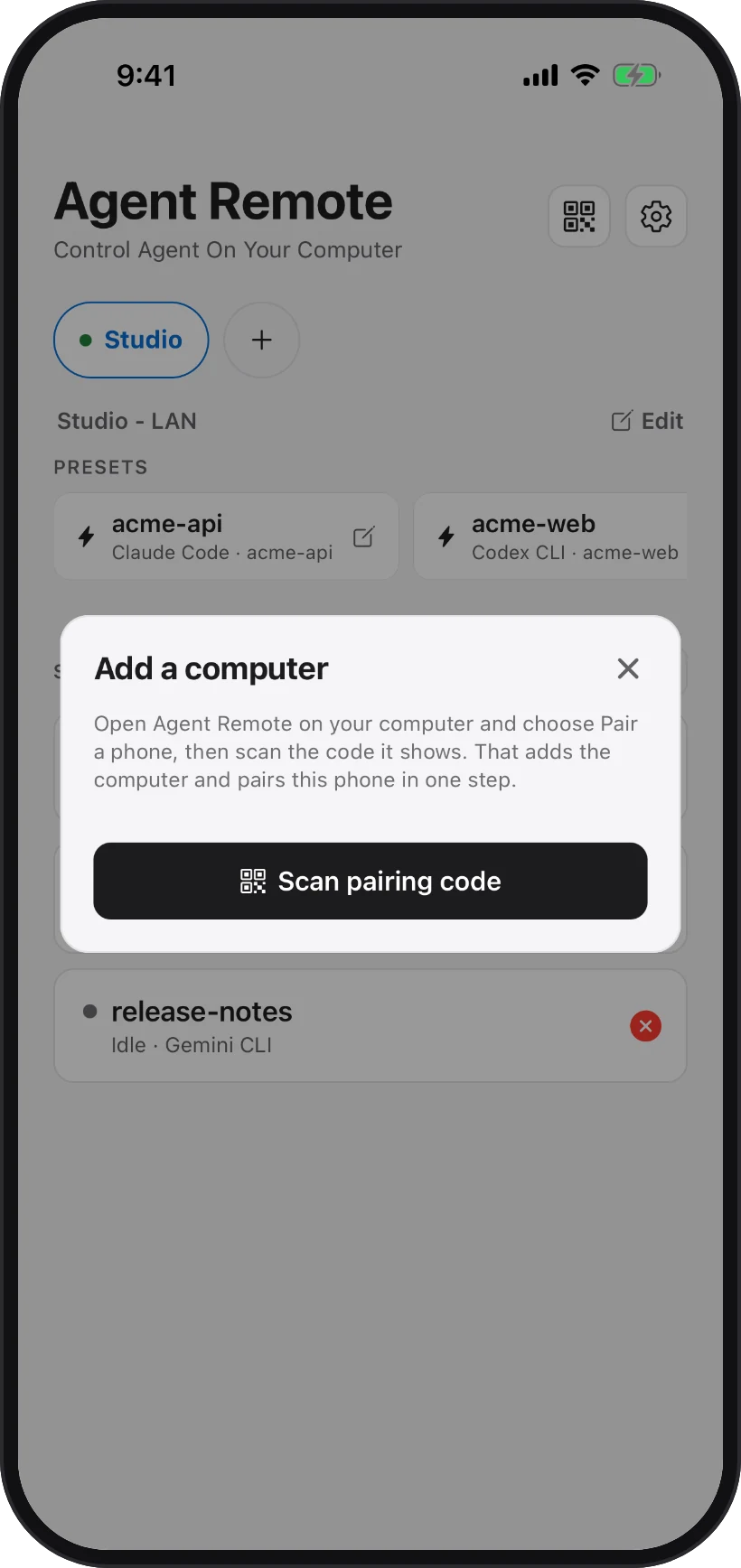
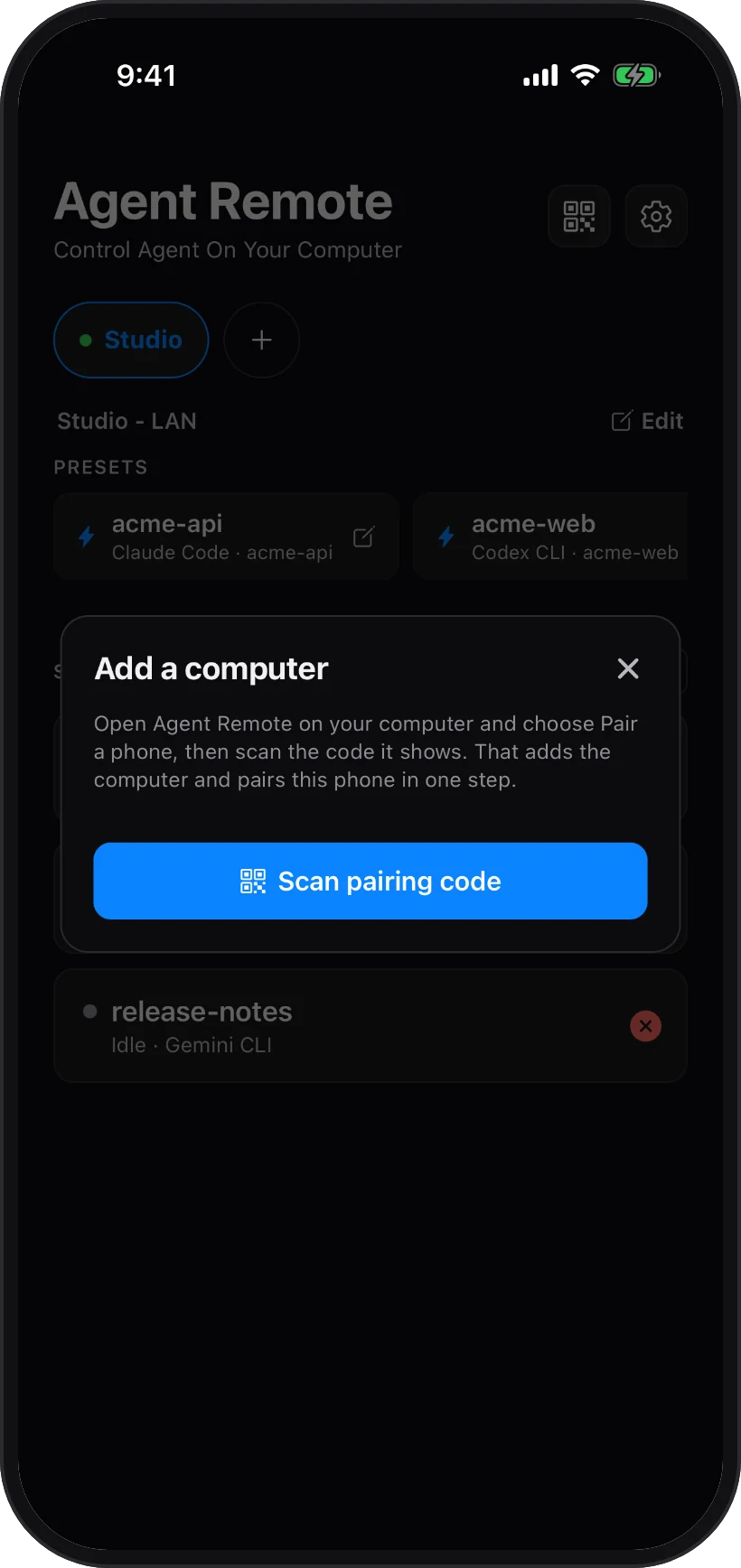
Scan pairing code
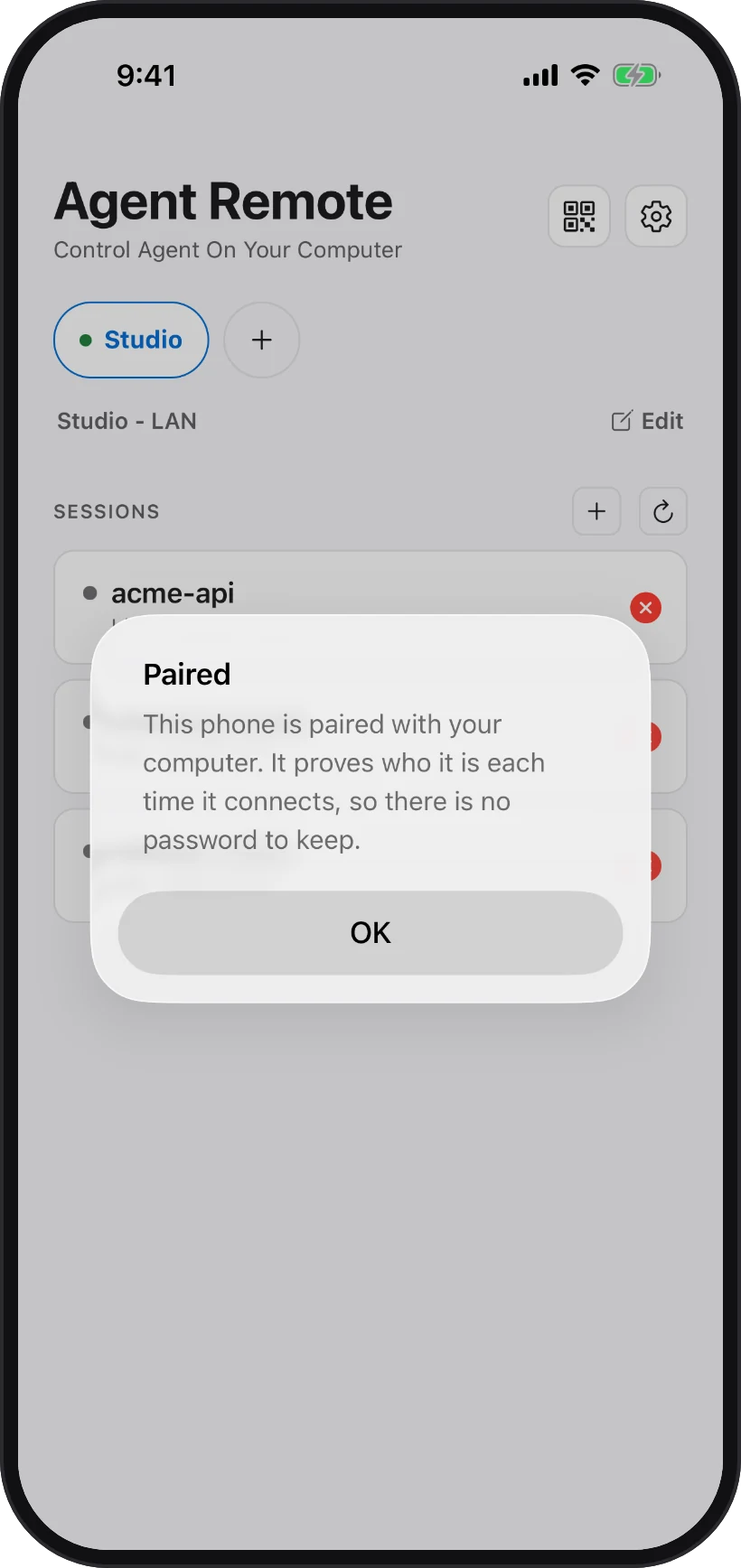
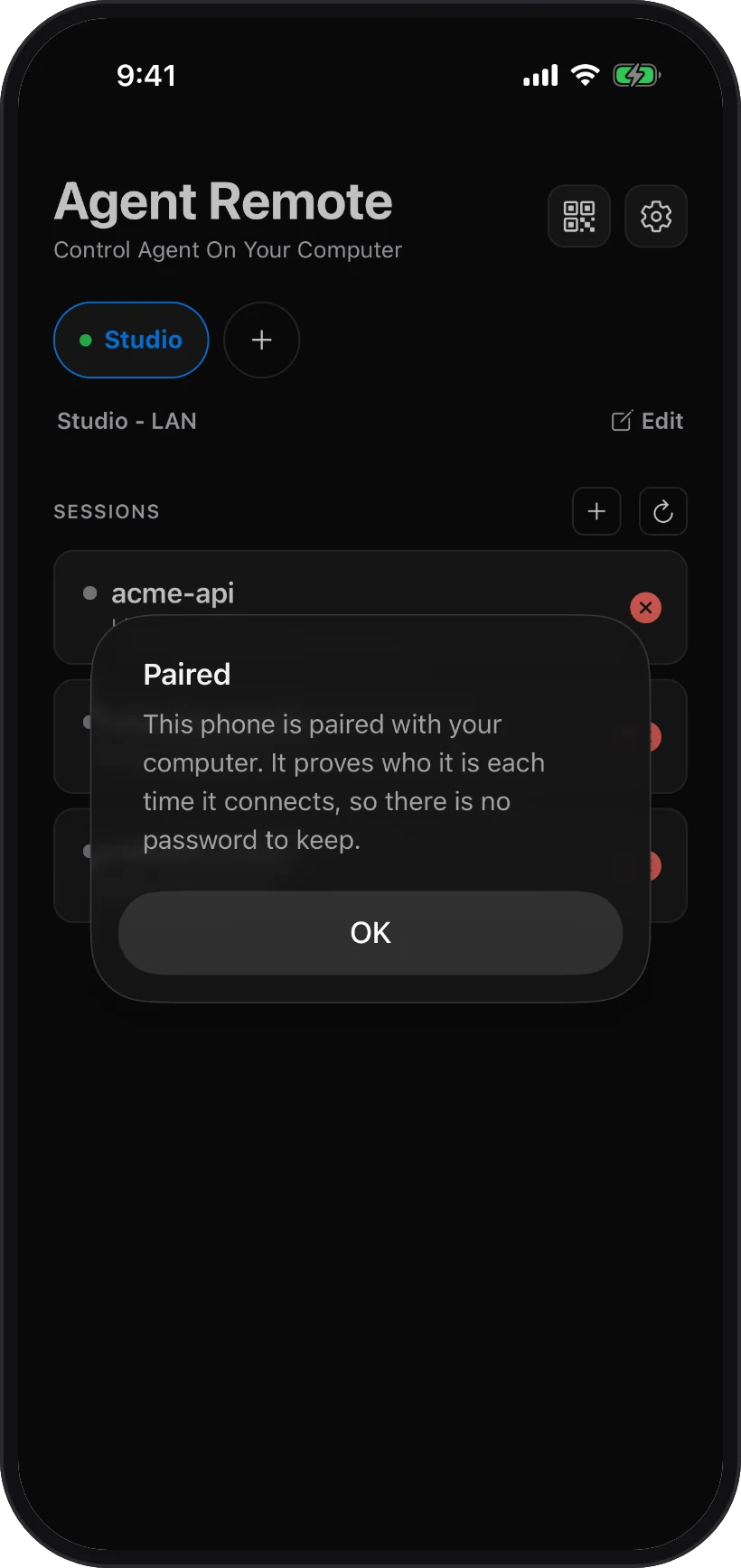
Paired
A pairing code works once and lasts fifteen minutes. If it runs out, choose Generate pairing QR again.
On your network, or from anywhere
Next to the computer's name your phone shows LAN or Tunnel — the way this phone was paired, wherever you happen to be. A LAN pairing works while the phone is on the same network as the computer.
Reaching the computer from anywhere is part of Pro. On the computer, open Access and turn on Tunnel under Reach this computer. Then pair over it: choose Tunnel at the top of the pairing dialog. A phone that is already paired does this too — choose it in Access, then Reconnect, pick Tunnel and scan; it keeps its key.
The tunnel's address can change when the app on your computer restarts or updates. If a phone stops reaching it from outside, reconnect it over Tunnel the same way.
Removing a phone
On the computer, open Access and choose the phone. Block cuts it off and can be undone; the bin removes it for good. Either one frees its place in your plan. Removing the computer from the phone (long-press its tab, then Remove host) only forgets it on the phone — it does not free the place.
Start and use a session
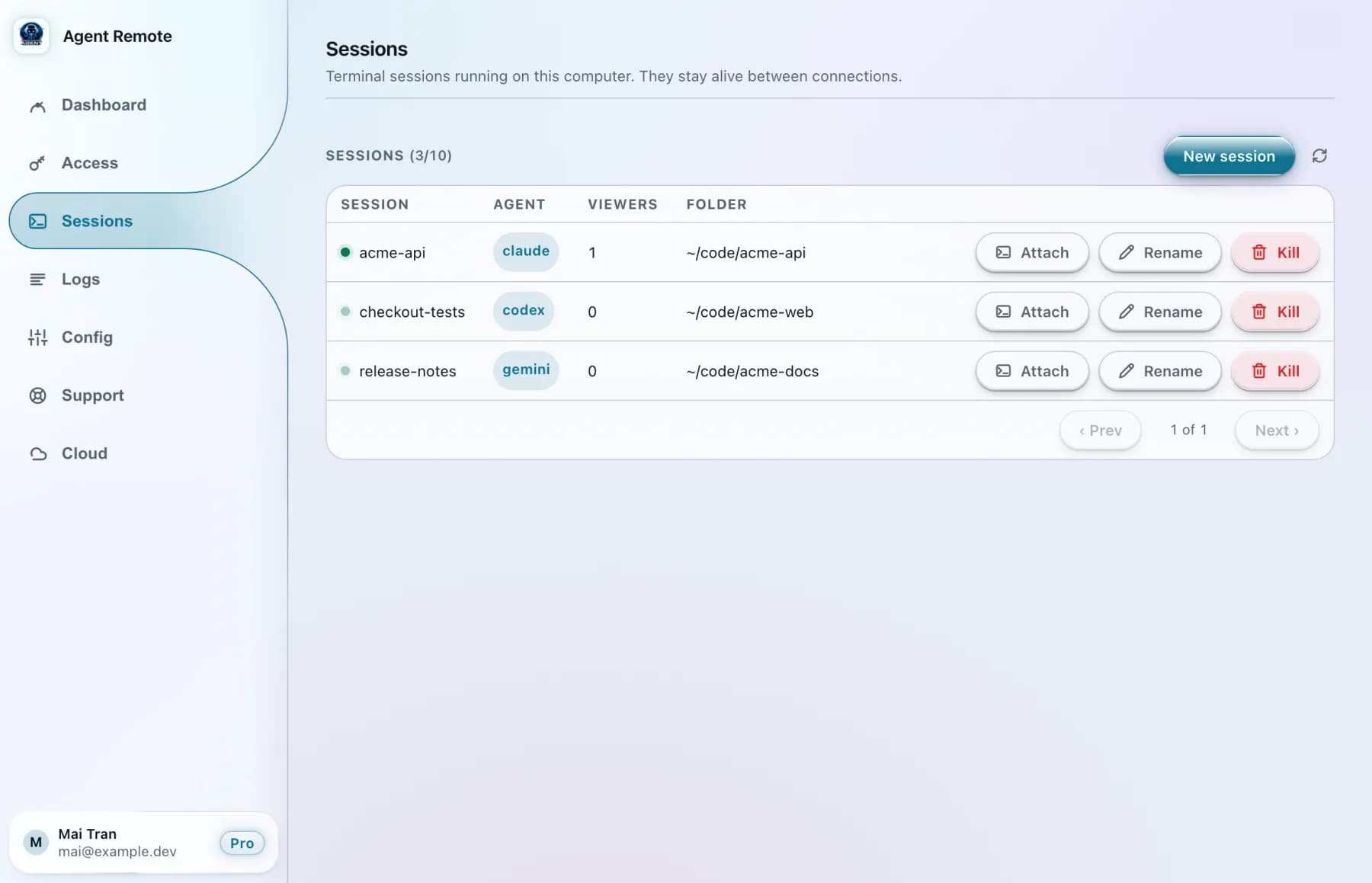
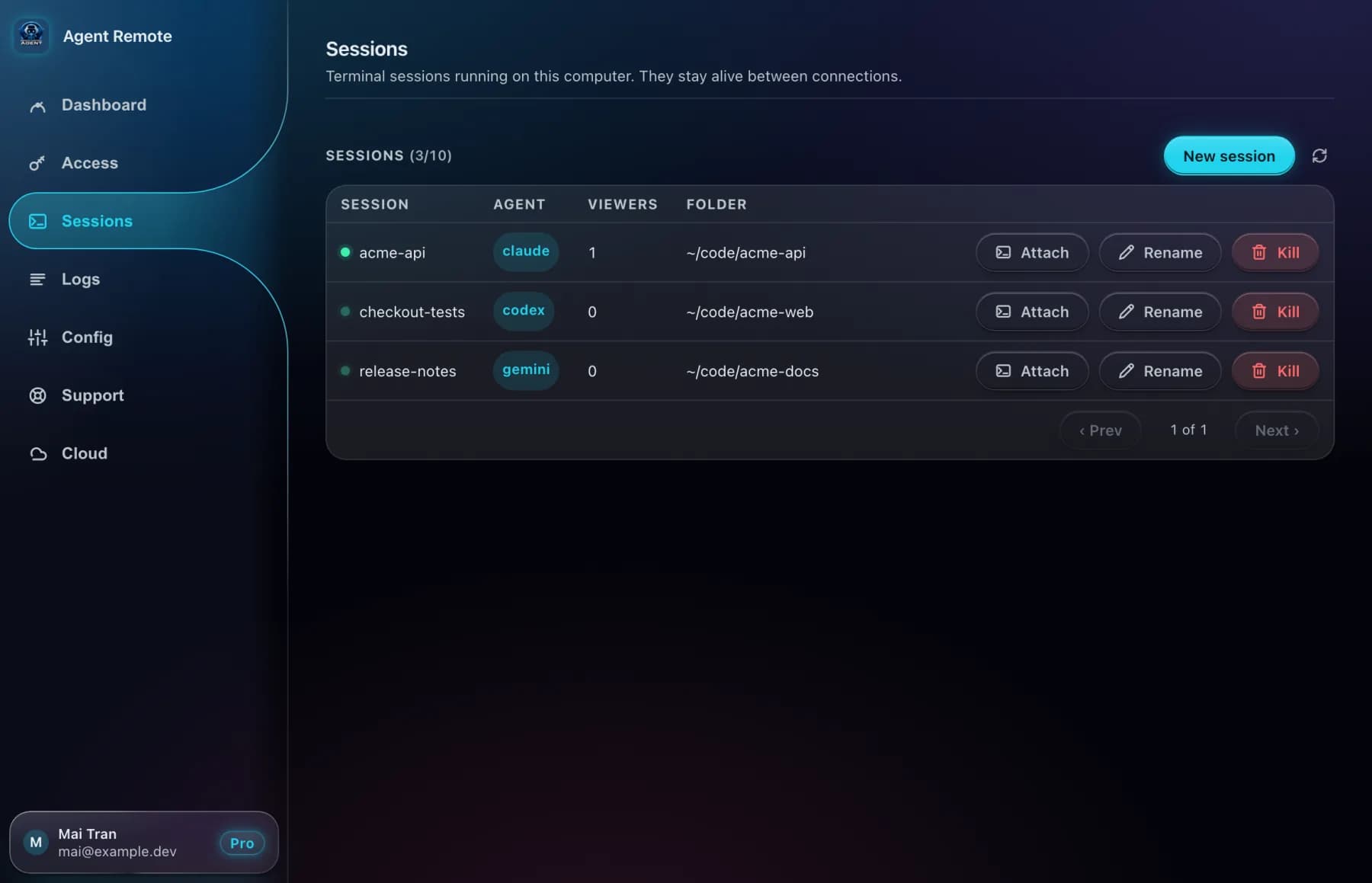
A session is one agent working in one folder. It keeps running on your computer whether or not a phone is looking at it.
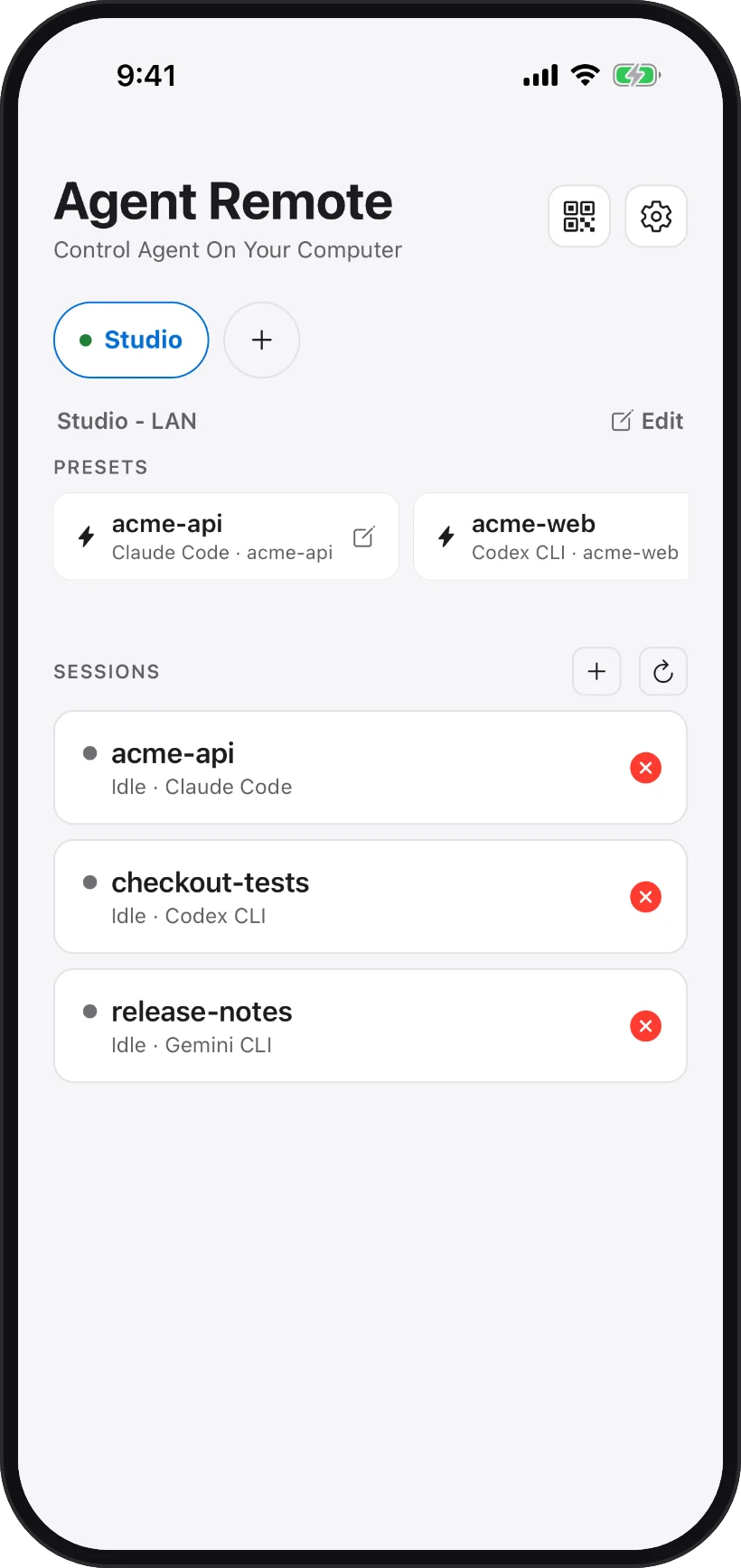
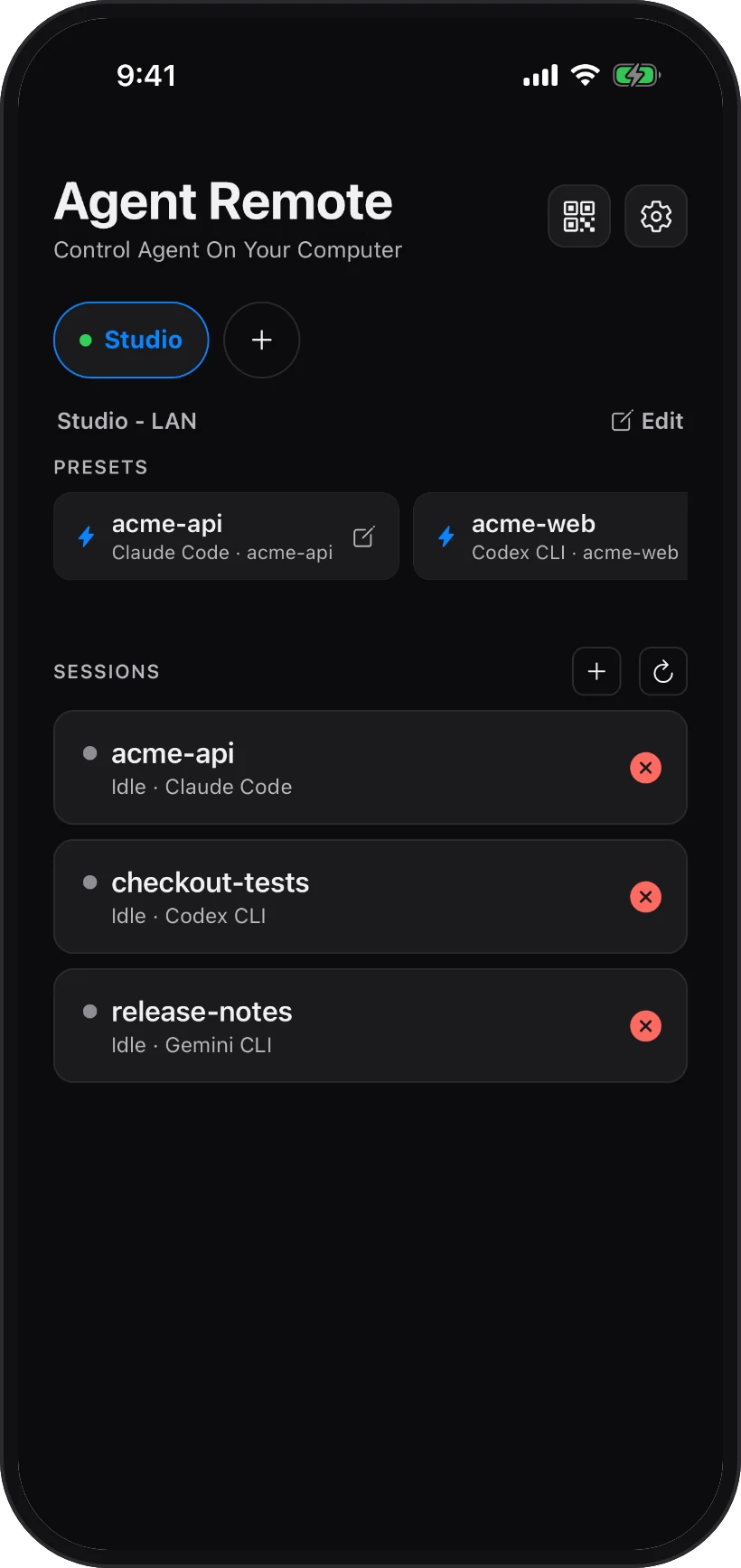
Your sessions
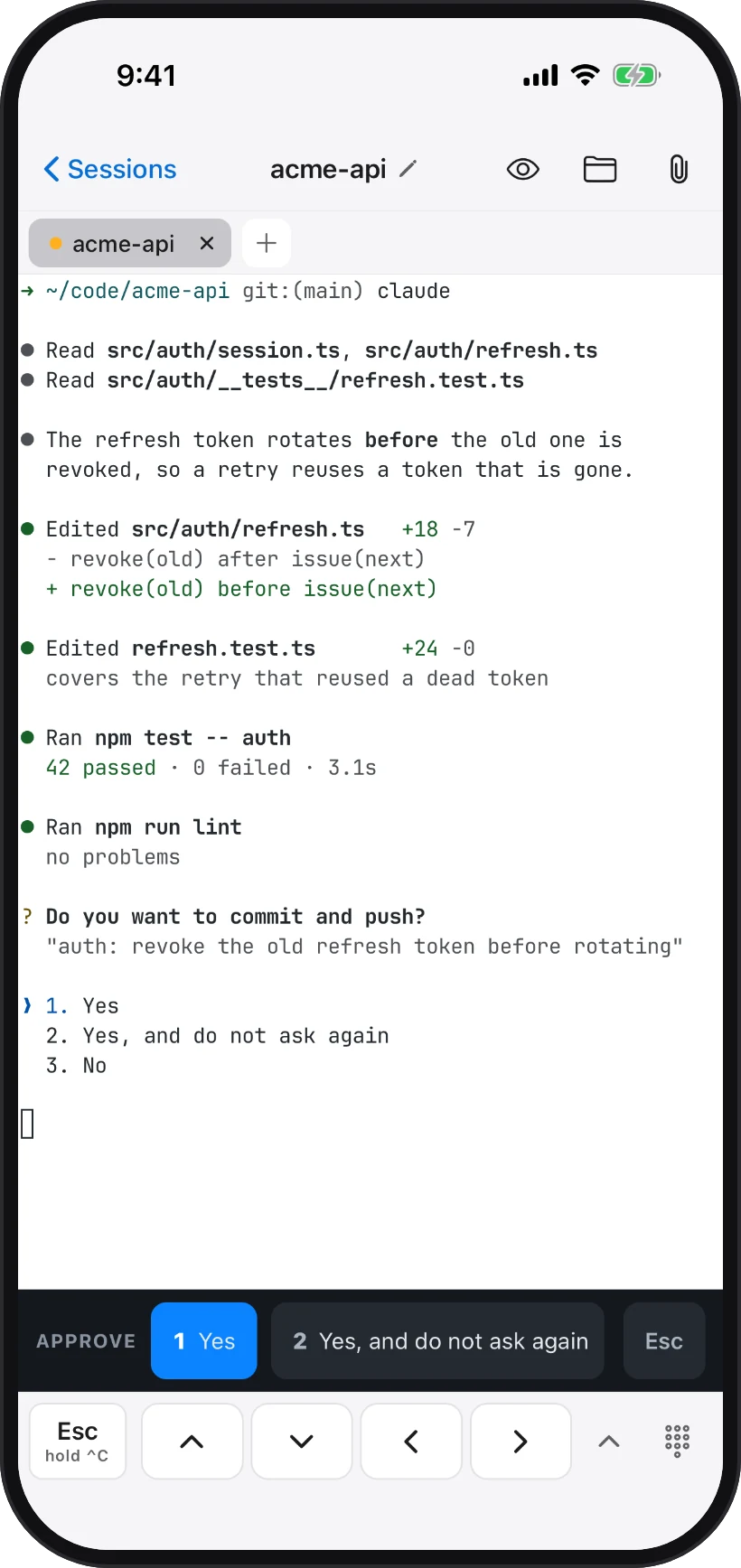
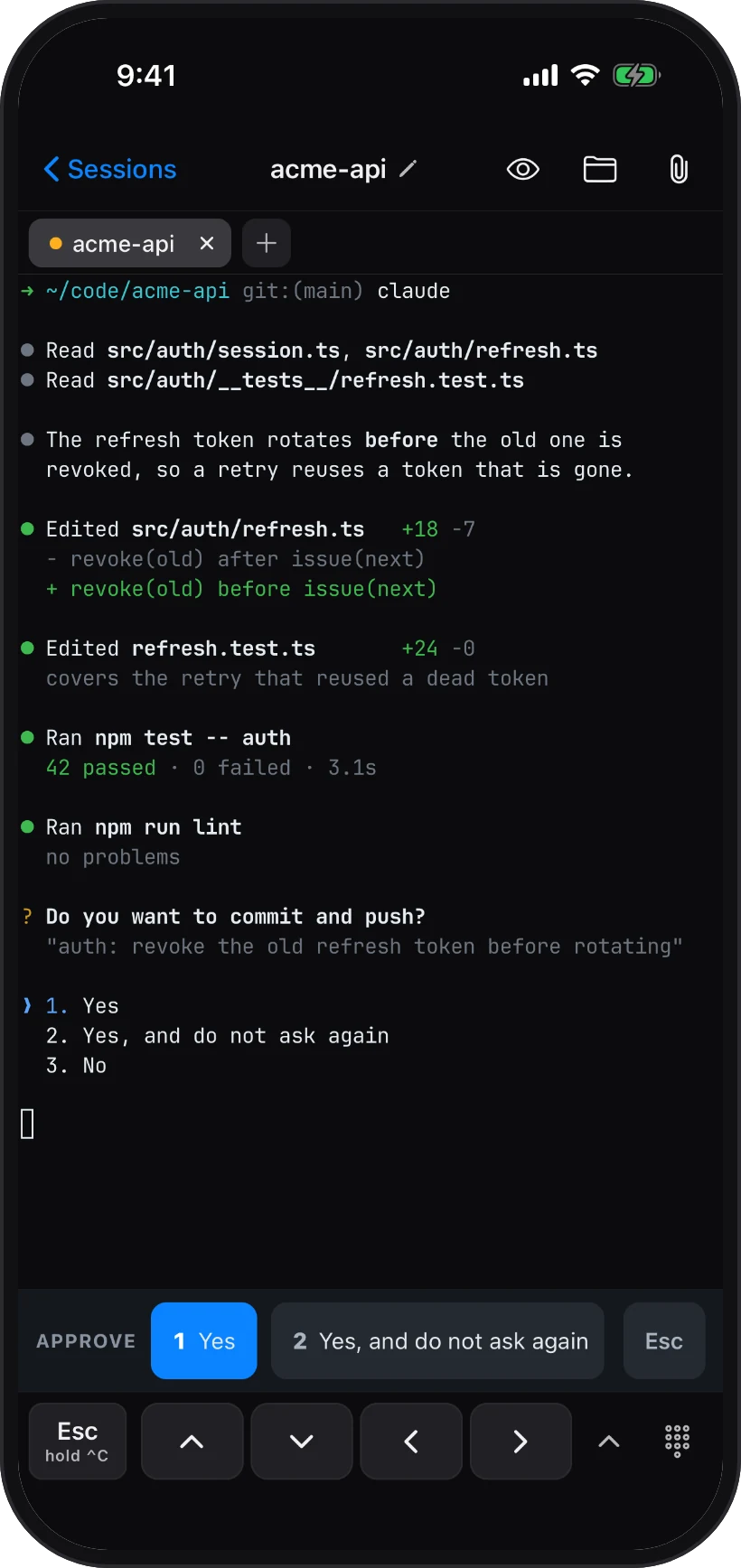
Inside a session
Start one
- On your phone, tap + next to Sessions.
- Give it a Name, select a Folder and pick an Agent: Claude Code, Codex CLI, Gemini CLI or a plain Shell. An agent that is not installed on the computer is shown but cannot be picked.
- The folder is chosen, never typed. A phone paired with folders shows exactly those to pick from. A phone paired without any shows a Folder row: tap Change, tap a folder to go in, Up to go out, then Use this folder. If Agent Remote on the computer is too old to list folders, the session starts in your home folder — update it to choose another.
- Tap Create session.
You can start one from the computer too: Sessions, then New session.
Work in it
- The key bar under the terminal has Esc, the arrows and a keyboard toggle; more keys — Ctrl, Tab, Enter, Copy, Paste — are one tap away.
- When the agent asks a question, an Approve or Confirm row appears with one button per answer, so you rarely need to type.
- Open sessions sit as tabs along the top. Closing a tab only disconnects the phone.
- The paperclip sends a photo or a file to the session, up to 25 MB.
What keeps it running
Your phone going to sleep, losing signal or closing the app does not stop a session; when you come back you see what you missed. Restarting or updating the app on your computer does not stop it either — the phone just cannot reach it until the app is back (and over the tunnel it may need reconnecting, see Pair your phone).
To stop one, tap the red button on its row and confirm Kill. That ends the agent and anything it started.
Also on the session screen
- The folder button opens the session's Files — browse, read and edit them — and Changes, where you review, commit, push or discard what the agent changed.
- Preview — open the web app you are building, running on your computer, right inside the phone app, or mirror a simulator or emulator running there. Part of Pro.
Use it without the desktop app
For a machine you reach over SSH, or one running WSL (set it up first) — no app window needed. Install it with one line in that machine's terminal (the download page has the details). It gives you the agent-remote command used below — start it with agent-remote start, then pair with agent-remote pair:
curl -fsSL https://agentremote.app/api/download/install.sh | sh
Using the desktop app? Turn the command on there instead: Settings → Command-line tool → Install, or Install command-line tool from the app's icon. Everything below then works the same, except that the app installs and updates it for you.
The menu
Run agent-remote on its own to open a menu. Pick with the arrow keys and press Enter — nothing to type:
- Show status — is it running, and can your phone reach it.
- Pair phone — show a code to scan with the phone app.
- New session, Attach session, Quit session — start one, open one right in this terminal, or end one.
- Sign in / Sign out — your account, for reaching this machine from anywhere.
- View logs, Update, Uninstall, Exit.
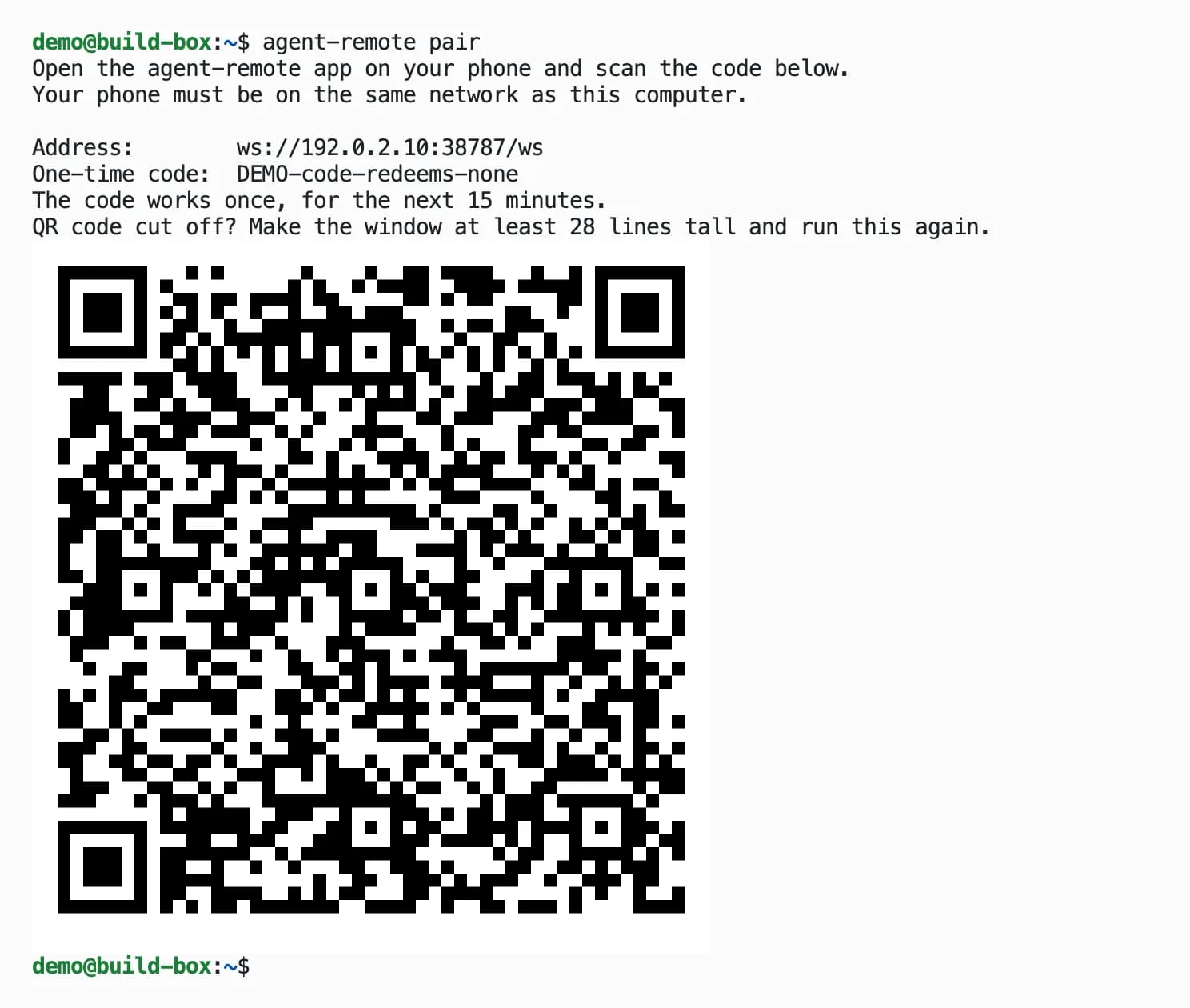
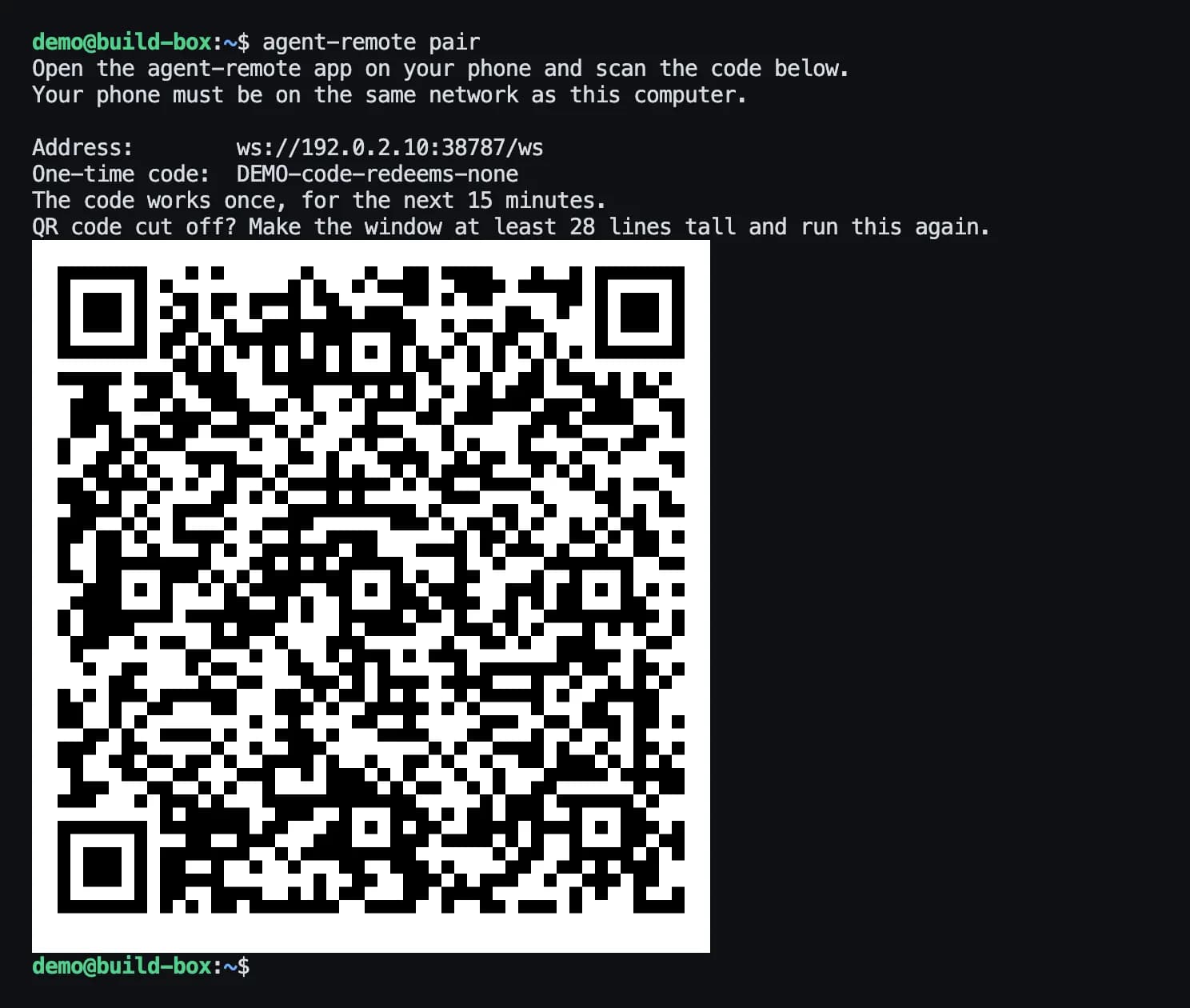
agent-remote pair in a terminal: scan the code with the phone app.Getting started
- Pair your phone on the same Wi-Fi:
agent-remote pair. The code works once, for fifteen minutes. Over SSH, make the window at least 80 columns wide and 30 lines tall so the whole code fits. - From anywhere (Pro):
agent-remote cloud login, thenagent-remote pair— the phone can be on any network. Remote access turns on by itself with Pro. If you turned it off, runagent-remote remote onfirst. - Then start, open and end sessions from the menu, or with the commands below.
Commands, for scripts
agent-remote session new --name build— start a session.agent-remote session list— list them.agent-remote session attach build— open a session right in this terminal, by its name in the app or its id. Your phone stays connected. To leave without ending the session, press Ctrl-\ twice.agent-remote session quit build— end a session, on every device.agent-remote status— is it running.agent-remote doctor— checks everything (that your phone can reach it, that it starts by itself) and says how to fix anything that isn't right.agent-remote stop— your phone can't reach this machine untilagent-remote start. It stays off, also after a restart, until you start it again.agent-remote update— install the newest version. Sessions keep running, and if the new version doesn't start, the previous one is put back.agent-remote uninstall— remove it completely. Your paired phones are remembered in case you install it again; add--forget-devicesto forget them too.agent-remote <command> --helpgives more on any command.
On WSL, step by step
Some steps happen on the computer itself, some inside WSL. Each step starts by saying which.
Windows · Run box First, check your version. On Windows (not in the WSL terminal): press Win+R, type winver and press Enter. Then follow A or B:
- It shows Windows 11, version 22H2 or newer: follow A — your phone connects over your own Wi-Fi.
- It shows Windows 10 (even version 22H2) or an older Windows 11: follow B — on this version your phone can't reach WSL over Wi-Fi, so it connects through your Agent Remote account (Pro).
A. Connect over your Wi-Fi (once)
- Windows · Run box Open the settings file. On Windows (not in the WSL terminal): press Win+R, paste this and press Enter:
notepad %UserProfile%\.wslconfig. If Notepad asks to create the file, click Yes. - Windows · Notepad Add two lines and save. On Windows (not in the WSL terminal): in the Notepad window that opened, paste these lines, press Ctrl+S and close Notepad. If the file already has a
[wsl2]line, add only the second line under it.[wsl2] networkingMode=mirrored
- Windows · PowerShell Restart WSL. On Windows (not in the WSL terminal): open PowerShell and run
wsl --shutdown. Then open your WSL terminal again. - WSL terminal (Ubuntu) Start it and check. In the WSL terminal (Ubuntu): run
agent-remote start, thenagent-remote doctor. The line Phone can reach it should say yes, on the same network. If it says no, check the file from step 2 and do step 3 again. - WSL terminal (Ubuntu) Pair. In the WSL terminal (Ubuntu): with your phone on the same Wi-Fi, run
agent-remote pairand scan the code with the phone app. If a firewall window asks whether to allow access, click Allow (the download page has the firewall steps if it never asks). Still no luck? Use B.
B. Connect through your account (Pro — the phone can be on any network)
- WSL terminal (Ubuntu) Start it. In the WSL terminal (Ubuntu): run
agent-remote start. - WSL terminal (Ubuntu) Sign in. In the WSL terminal (Ubuntu): run
agent-remote cloud login, then open the link it shows in your browser and approve the code. - WSL terminal (Ubuntu) Pair. In the WSL terminal (Ubuntu): run
agent-remote pairand scan the code with the phone app. The phone can be on any network.
Remote access turns on by itself with Pro. If you turned it off, run agent-remote remote on first.
Keep it running (A and B)
- If
agent-remote doctorsays it can't start by itself:- WSL terminal (Ubuntu) In the WSL terminal (Ubuntu): run the command below, add these two lines and save (Ctrl+O, Enter, Ctrl+X).
sudo nano /etc/wsl.conf
[boot]
systemd=true
- Windows · PowerShell On Windows (not in the WSL terminal): open PowerShell and run
wsl --shutdown. - WSL terminal (Ubuntu) In the WSL terminal (Ubuntu): open it again and run
agent-remote start. If it shows one more command, run that once too.
- WSL terminal (Ubuntu) In the WSL terminal (Ubuntu): run the command below, add these two lines and save (Ctrl+O, Enter, Ctrl+X).
- Keep one WSL terminal open. WSL shuts down when none is open, and your phone can't reach the computer until you open one again.
Project presets
A preset saves a name, a folder and an agent, so a session you start every day is one tap. Presets live on your phone, one set per computer.
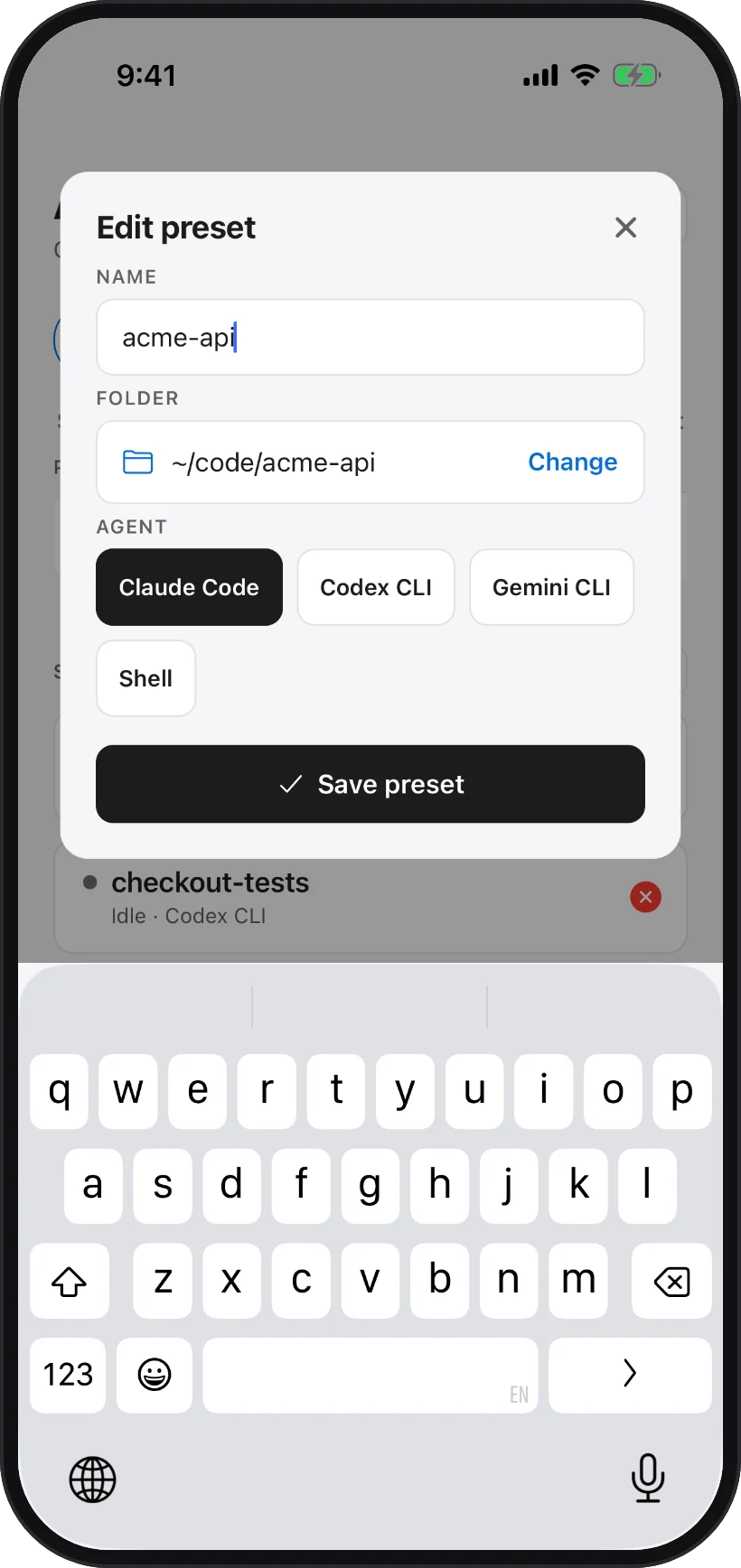
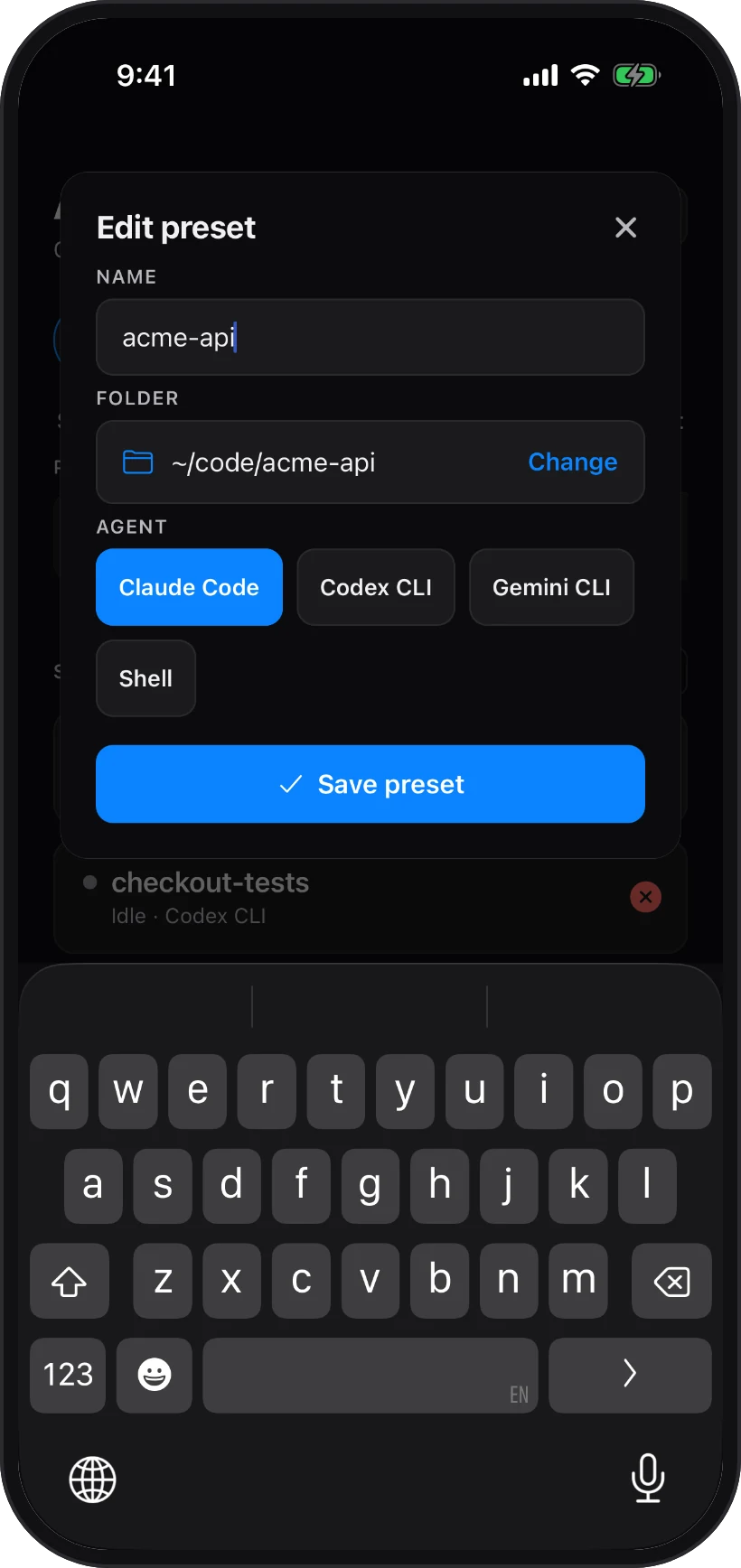
- Make one: fill in the New session sheet and tap Save as preset.
- Use one: tap it in the Presets row above your sessions. It starts straight away; if the name is taken, it picks a free one.
- Change one: tap its pencil. Remove one: long-press it — running sessions are not touched.
Notifications
When an agent needs you, your phone gets a notification — it is waiting for input, it finished, it ended, or it hit an error.
Tap the notification to open that session, then answer in its Approve row — yes or no, or the numbered list of choices many agents use to ask before they run a command.
What notifications need
- Pro, or the free trial.
- The computer linked to your account: in the app, Cloud, sign in and link it.
- Notifications allowed on your phone when it asks.
- Receive notifications left on for your phone in the computer's Access tab.
- The session opened on your phone at least once since the app on your computer last started — that is what tells it to watch.
What a phone can reach
Each phone has a role, set on the computer in Access by choosing the phone:
- Full — everything: type, start and close sessions, edit files, commit.
- Operate — type and answer prompts in sessions that already exist, and read files and history. It cannot start or close sessions, edit files or commit.
- View — watch and read, no input.
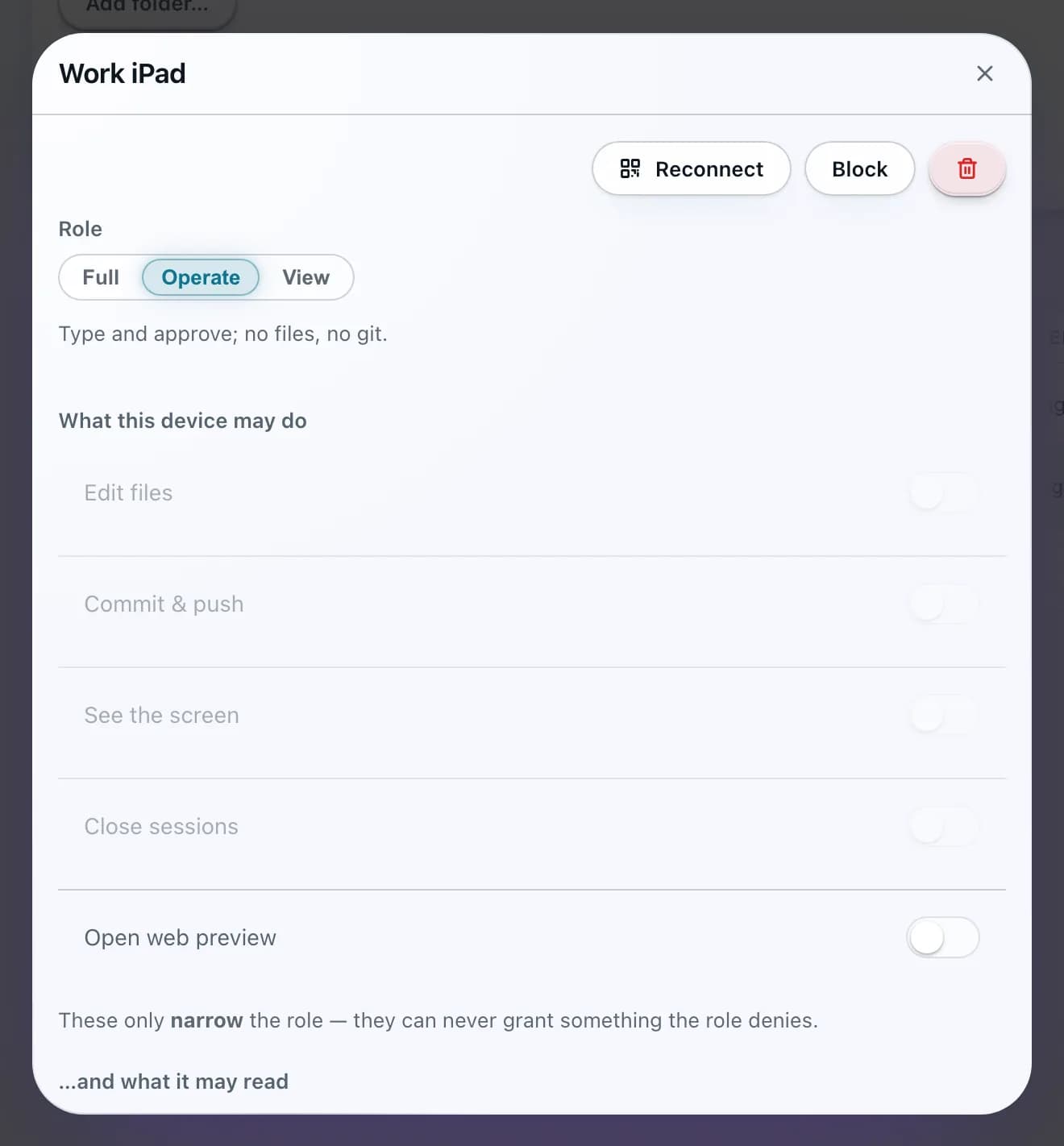
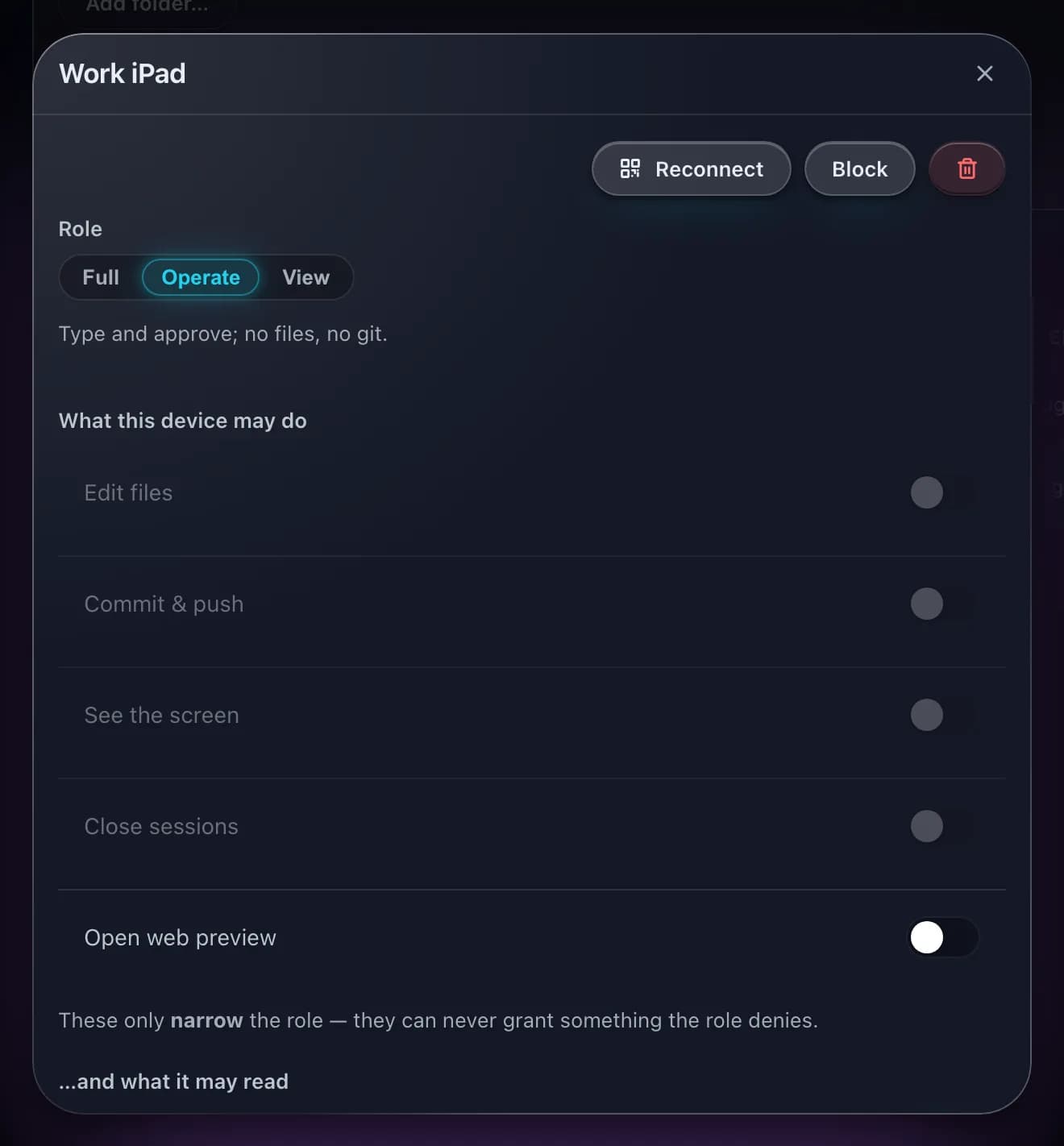
Under the role you can switch off individual things — starting sessions, editing files, the web preview, notifications and more — and limit which agents and which sessions the phone may use. These only ever narrow the role; they cannot grant something it does not allow. Changing the role, switching off starting sessions and limiting sessions are part of Pro; blocking and removing a phone work on every plan.
Folders
Choose Specific folders to limit which folders the phone can browse and start sessions in, on every plan — when you pair it (Add folder…) or later. These are the folders the phone offers when it starts a session. Be clear about what this covers: it limits the file browser, not the terminal. A session's terminal can still run commands anywhere on the computer — and a phone that can type into a session can run them too.
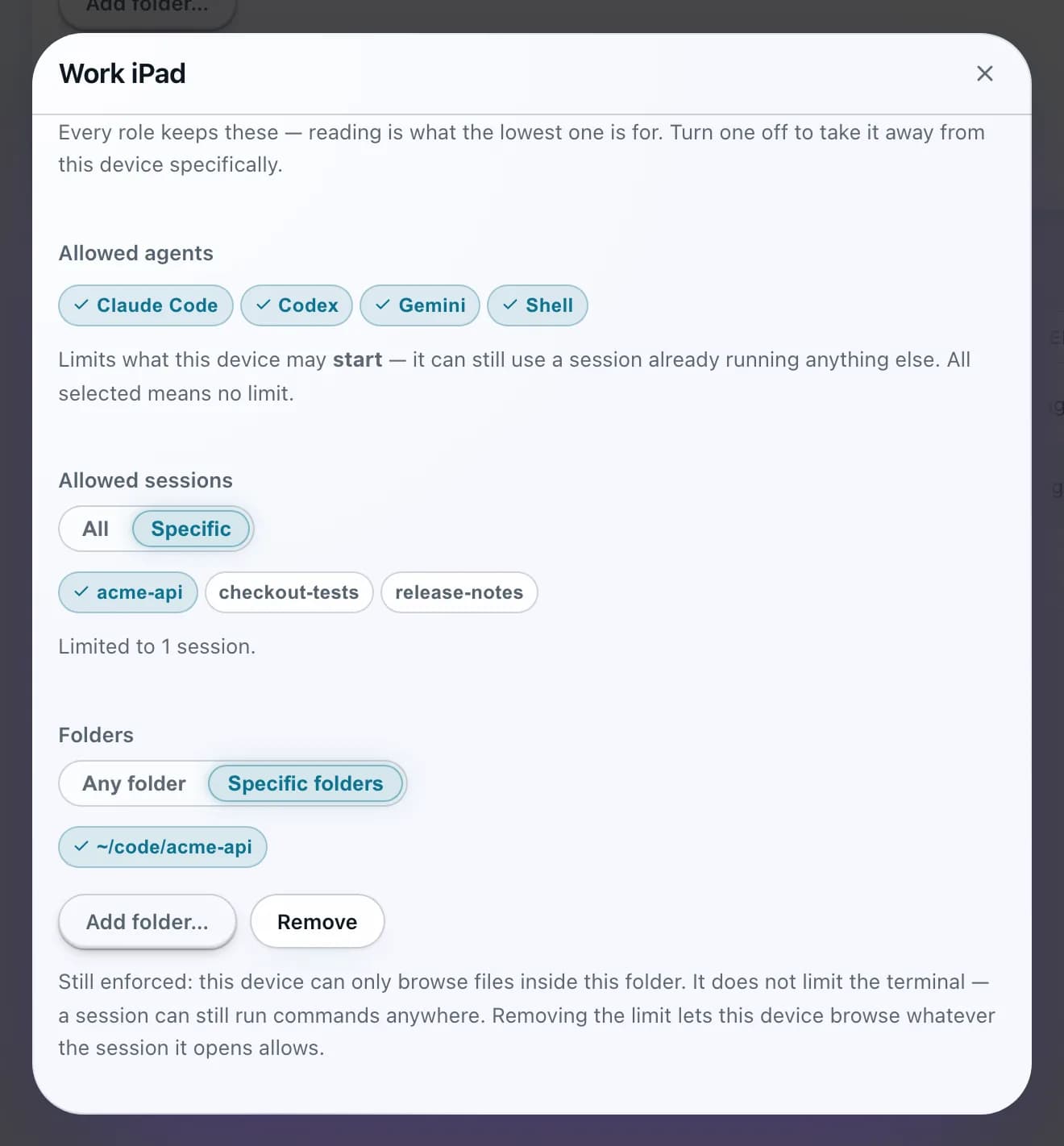
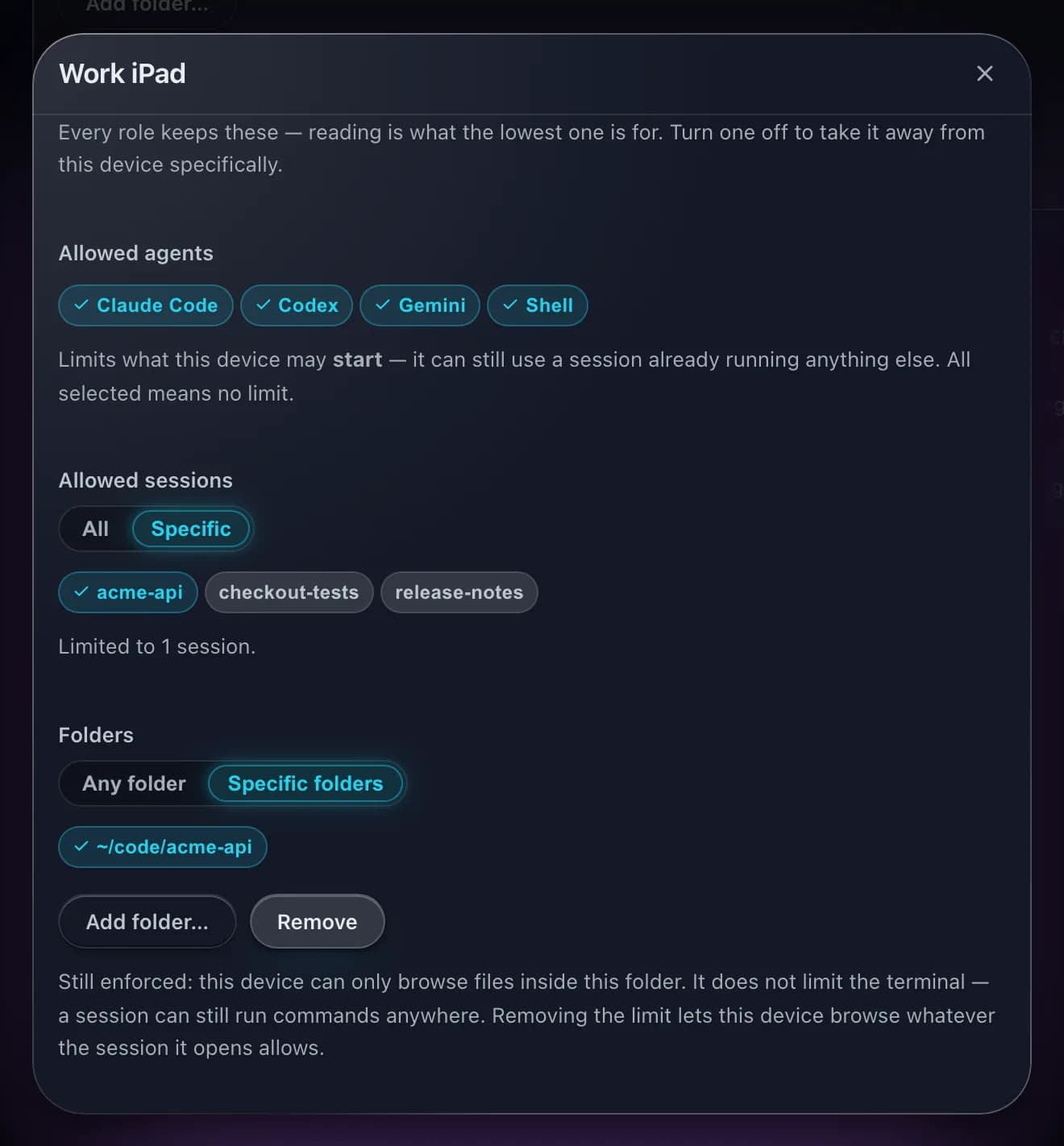
So give a phone you do not fully trust the View role: it can watch, but not type. Operate can still type into every session that exists; with Pro you can narrow that to specific sessions.
When pairing on your network fails
On your own network the phone talks straight to the computer. When you scan the code, it first checks that the computer answers — if it doesn't, the phone says Your computer didn't answer. Work through these in order — or search the message on the troubleshooting page.
Start with the basics
- The app is open on the computer, and the computer is awake.
- The phone is on the same Wi-Fi as the computer — not on mobile data, and not on a guest network.
- The code is fresh. It carries the computer's address as it was when it was made, so after the computer changes network, choose Generate pairing QR again.
Check from your phone's browser
- Find the computer's address on your network in its network settings. It looks like
192.168.1.20. On a server without a screen,agent-remote doctorshows it next to Phone can reach it. - On the phone, open the browser and go to
http://192.168.1.20:38787/health, with your computer's address in place of the example. - If the page shows
{"ok":true}, the phone can reach the computer: make a new code and scan it. If the page never loads, something between them is blocking it — one of the causes below.
A firewall on the computer
A firewall that blocks incoming connections stops the phone without telling either side. Allow Agent Remote, or port 38787, for incoming connections on your home network. The steps for each system are on the download page.
A network that keeps devices apart
Guest networks, and many hotel, school and office networks, stop devices on the same Wi-Fi from reaching each other. Pair on your own network instead, or turn that off on your router — it is often called AP isolation or client isolation.
A VPN or a virtual machine
The code carries one address: the one the computer uses to reach the internet.
- A VPN on the computer can make that the VPN's address, which your phone cannot reach. Turn the VPN off, make a new code and scan it.
- A virtual machine with shared networking gets an address only the computer it runs on can see. Switch the virtual machine's network to bridged, restart it and make a new code — or install Agent Remote on the computer itself.
- WSL needs a one-time setup — follow On WSL, step by step.
Or skip your network
With Pro, pair over Tunnel instead (see Pair your phone). It does not need the phone and the computer on the same network, so none of the above gets in the way.
When something is wrong
Seeing a message you don't understand? Search for it on the troubleshooting page — every message the apps show, with the steps that fix it.
- The phone says “Your computer didn’t answer” when I scan
- Go through When pairing on your network fails: a firewall, a guest network or a VPN on the computer are the usual causes.
- My phone says it can’t reach the computer
- Make sure the app is open and the computer is awake. On the phone, tap Try again, or Find it on this network if it moved. Still nothing? On the computer, open Access, choose your phone, choose Reconnect and scan the code — your phone keeps its key. Away from your own network, you need Pro with Tunnel turned on and the phone paired over Tunnel; after the computer's app restarts, reconnect it over Tunnel again.
- It stopped connecting after an update
- Some updates change how the phone finds the computer. Use Reconnect as above and scan once.
- The pairing code didn’t work
- A code works once, for fifteen minutes. Choose Generate pairing QR again and scan the new one. After several failed tries the computer pauses pairing from that phone — choose Clear and let it try again.
- The phone says it’s no longer allowed
- It was blocked or removed on the computer. Unblock it in Access, or pair it again.
- A session is dimmed with a lock
- This phone has as many sessions open as your plan allows. Close one of your open session tabs — the session keeps running — or stop one you no longer need.
- No notifications arrive
- Go through the list under Notifications. Your phone's settings, under Plan, say when the computer is not linked or the phone is not allowed notifications.
- The web preview shows nothing
- Check the dev server is running on the computer and that you picked the number it runs on. Away from your network, Tunnel needs to be on.
- My trial or plan ended
- Running sessions carry on, and you can still reach them on your own network — but only as many at a time, and from as many phones, as the free plan allows. Reaching the computer from elsewhere, notifications and the other Pro features stop until you subscribe again.
- Something else is wrong
- In the app on your computer, open Support. Under Get help, choose Problem or Feedback, say what happened and — if you want a reply — add your email.